
Get started with the GUI
The desktop GUI puts projects, sessions, approvals, diffs, terminal output, plugins, automations, and browser automation in one local workspace.
First launch
Pick your platform on /downloads. The public desktop GUI currently ships signed macOS .dmg packages (Apple Silicon / Intel) and a Windows x64 setup.exe; Linux currently uses the TUI. First launch connects to the local App Server and asks you to sign in with the same Acosmi account.
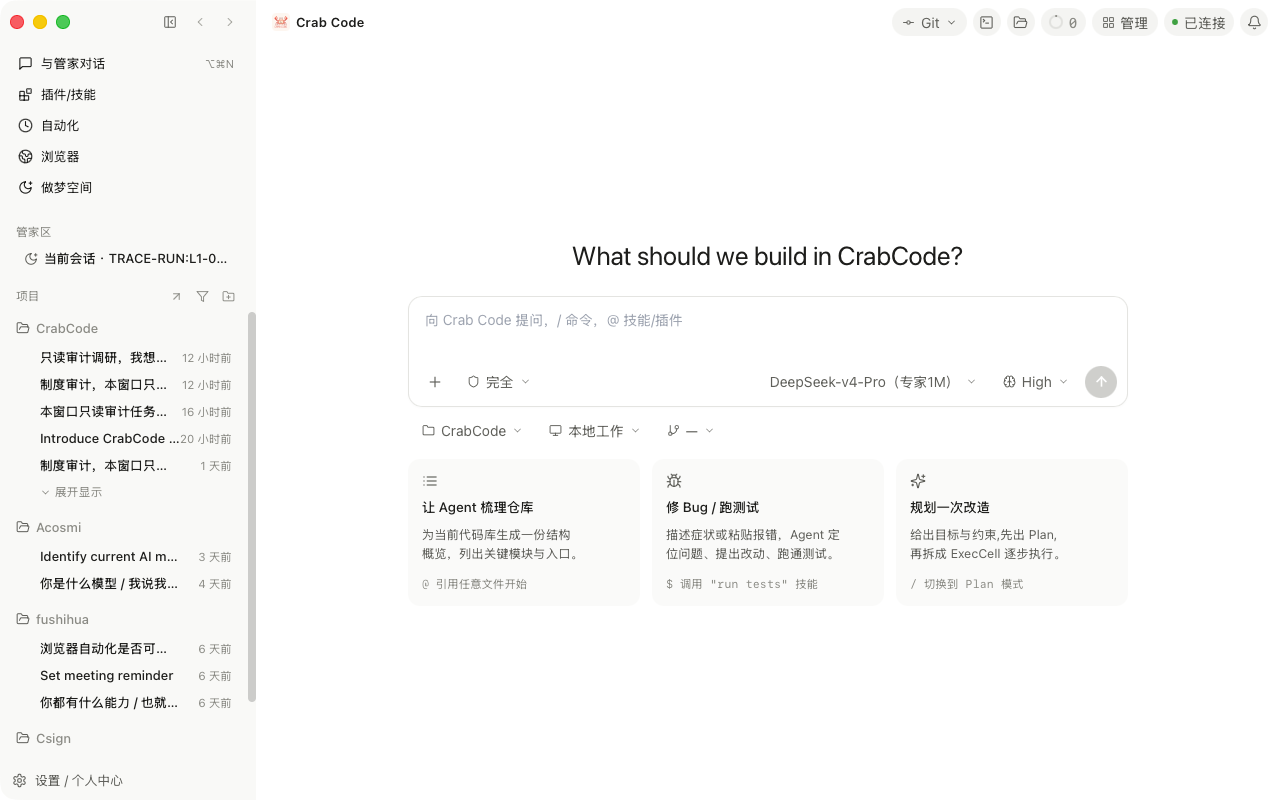
These screenshots were captured from the real /Applications/Crab Code.app desktop window. Once signed in and connected to the App Server, the main workspace shows the left navigation, project/session list, central workspace, top status bar, and composer.
Use the project workspace for repo-bound coding tasks:
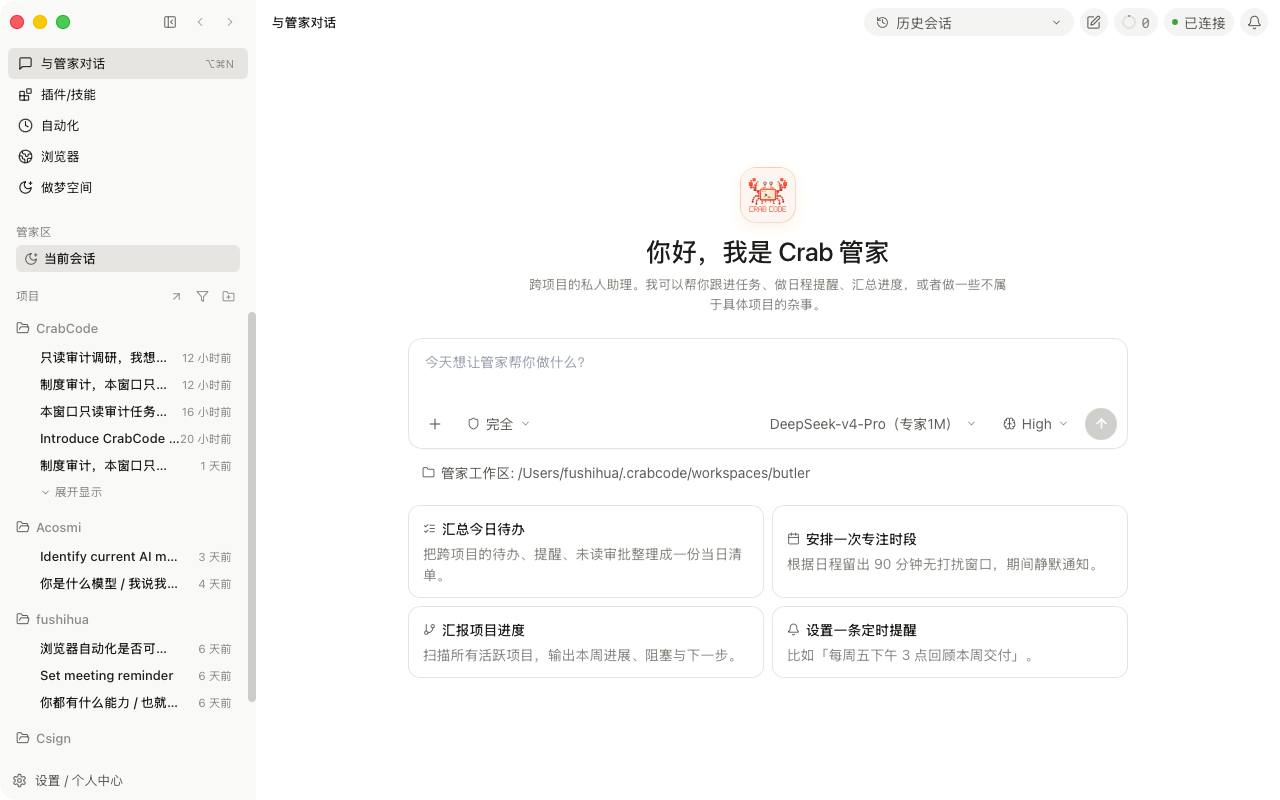
Use the butler workspace for cross-project todos, reminders, progress summaries, and tasks that do not belong to one repo:
If you see "account service unavailable", that is a backend/account connection state rather than the normal GUI. Click Retry; if it persists, restart the desktop app or confirm that crabcode-app-server can start locally.
Code / Work modes
The desktop top area has Code and Work workspace modes:
| Mode | Use it for | Sidebar |
|---|---|---|
| Code | Repo-bound coding, tests, Git, and file work | Project tree, project sessions, unspecified-directory sessions |
| Work | Cross-project tasks and butler chats organized by workflow | My Workflows, workflow sessions, unattributed workflow chats |
Code and Work remember separate navigation positions. Work uses the local butler workspace under CrabCode's state directory, so no-project Code chats do not leak into Work. See GUI Work Mode for the full guide.
Left navigation
| Entry | Purpose |
|---|---|
| Butler chat | Cross-project assistant conversations |
| Plugins / skills | Installed plugins, skills, marketplace, plugin detail and management |
| Automations | Cron daemon status, one-time jobs, recurring jobs, trigger/run history |
| Browser | Local browser automation panel |
| Dream space | Memory, archive, dream automation, and extraction/search state |
| Projects | Register local folders, enter projects, resume sessions |
| Settings / account | Account, quota, wallet, language, config, and external links |
In Work mode, the project area becomes "My Workflows". Presets include finance, legal, and office workflows; capability cards come from installed official plugins and local skills. If the backing plugin is missing, clicking a preset opens the plugin install flow.
Project sessions
Register a local folder from the project area. Project chat uses that folder as the working directory, so file reads/writes, commands, Git operations, and session restore all anchor to that workspace.
The center pane shows the conversation stream, tool progress, compaction banners, and assistant output. The right-side panels surface approvals, user input requests, diffs, and terminal output when relevant.
Plugins, automations, and browser
The Plugins / skills page uses the same plugin model as /plugin and --plugin-dir. Some plugin changes take effect after reloading plugins or starting a new session.
Work mode derives a Custom workflow from user-level or project-level file-backed skills. Use the + button beside "My Workflows" to mount or re-mount workflows. Unmounting a workflow does not delete plugins, skills, or historical chats.
The Automations page talks to App Server cron/* methods: cron/status, cron/list, cron/runs, cron/add, cron/update, cron/remove, and cron/run. See Automations.
The Browser page uses App Server browser automation. Use Chrome extension mode when a task needs your real browser login state; see Browser automation.
Troubleshooting
| Symptom | Fix |
|---|---|
| Account service unavailable | Click Retry; if it persists, restart the desktop app or confirm crabcode-app-server can start |
| Project list is empty after login | Add a local folder and confirm the desktop app has directory access |
| Automations says daemon unavailable | Run crabcode cron status, then restart Desktop or the cron daemon if needed |
| Plugin changes do not affect current chat | Reload plugins or start a new chat; some tools enter the pool only at session start |
| Work has no capability cards | Install or enable the matching official plugin; custom skills must be enabled |
| Chat appears under unattributed workflow chats | It has no workflow attribution; create it from a workflow row to auto-group it |